1. Create an account
Required.
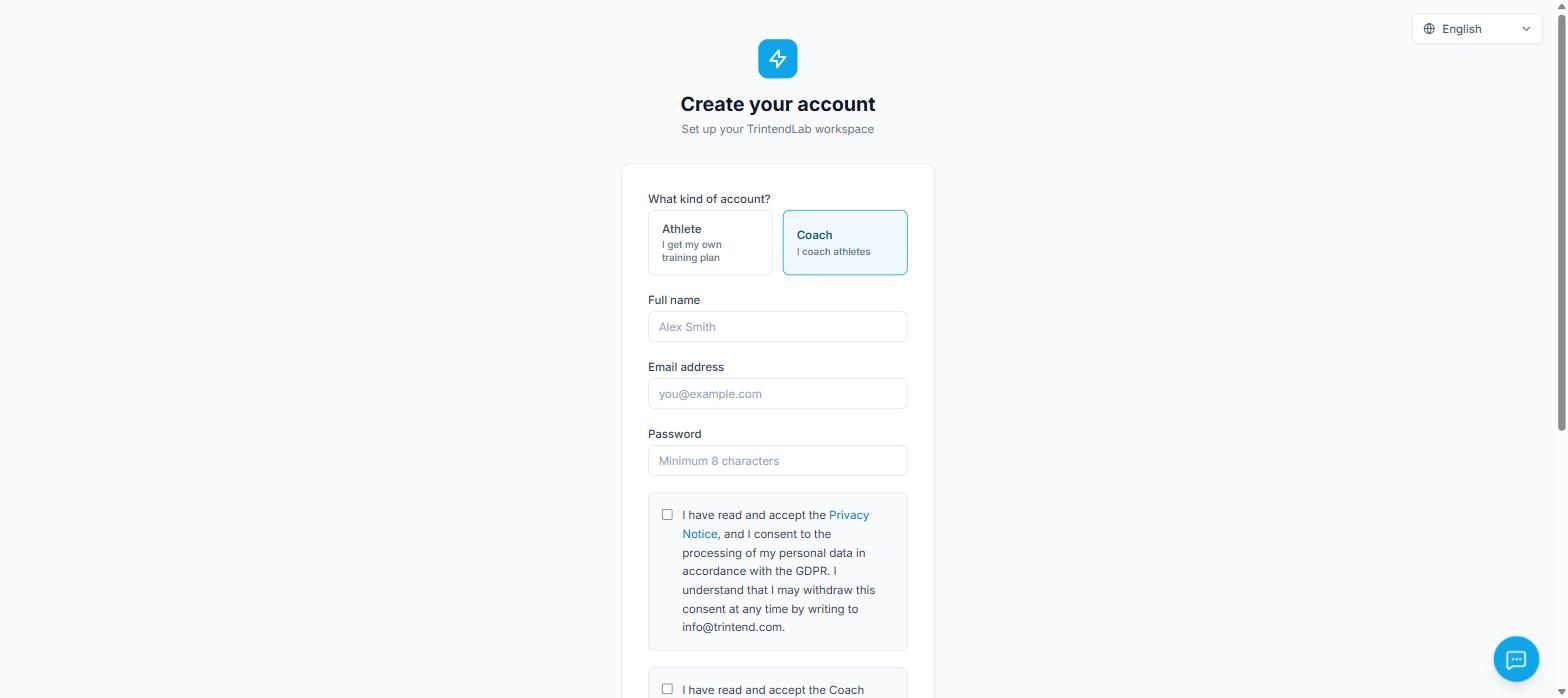
Open app.trintend.com/auth/register and choose Coach. You need your full name, an e-mail address, a password of at least 8 characters, and you have to accept the privacy notice.
No tax ID is needed here. The app asks for it after login, on the Overview page.
2. Billing details and tax ID
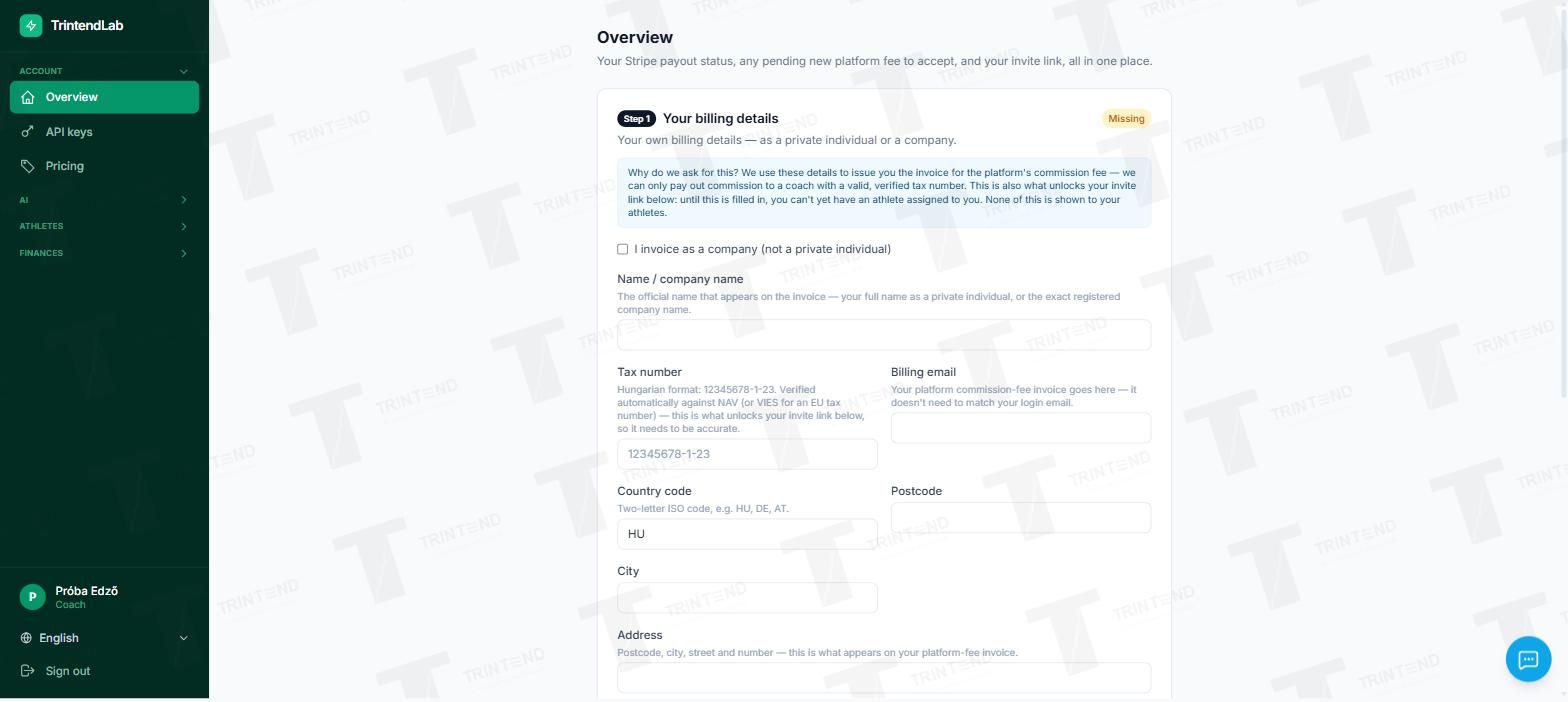
Required. Your invite link does not appear without it.
In the first block of the Overview page, enter your billing details as a private person or as a company: name or company name, tax ID, billing e-mail, country, postcode, city and address. The platform issues its invoice for the platform fee to these details.
The tax ID is checked automatically: Hungarian numbers with the tax authority (NAV), EU numbers in VIES. There are three possible results:
- Valid: your invite link appears at once.
- Invalid: the form is not saved; the error message tells you what to fix.
- Cannot be checked (for example a non-EU tax ID, or the official service is temporarily down): we approve it manually.
3. AI API key (Anthropic or OpenAI)
Required. Without it the AI features do not work for your athletes.
The AI calls of your athletes (plan creation, conversations with the companion, lab report analysis) run on your API key. You pay the provider directly for the usage; the platform does not re-invoice it.
You need the key of the provider whose model you choose in step 6. If you use models from both providers, enter both keys.
- Anthropic: console.anthropic.com → API Keys → Create Key. Copy the key starting with sk-ant-… straight away, it is shown only once.
- OpenAI: platform.openai.com → API keys → Create new secret key. The key starting with sk-… is also shown only once.
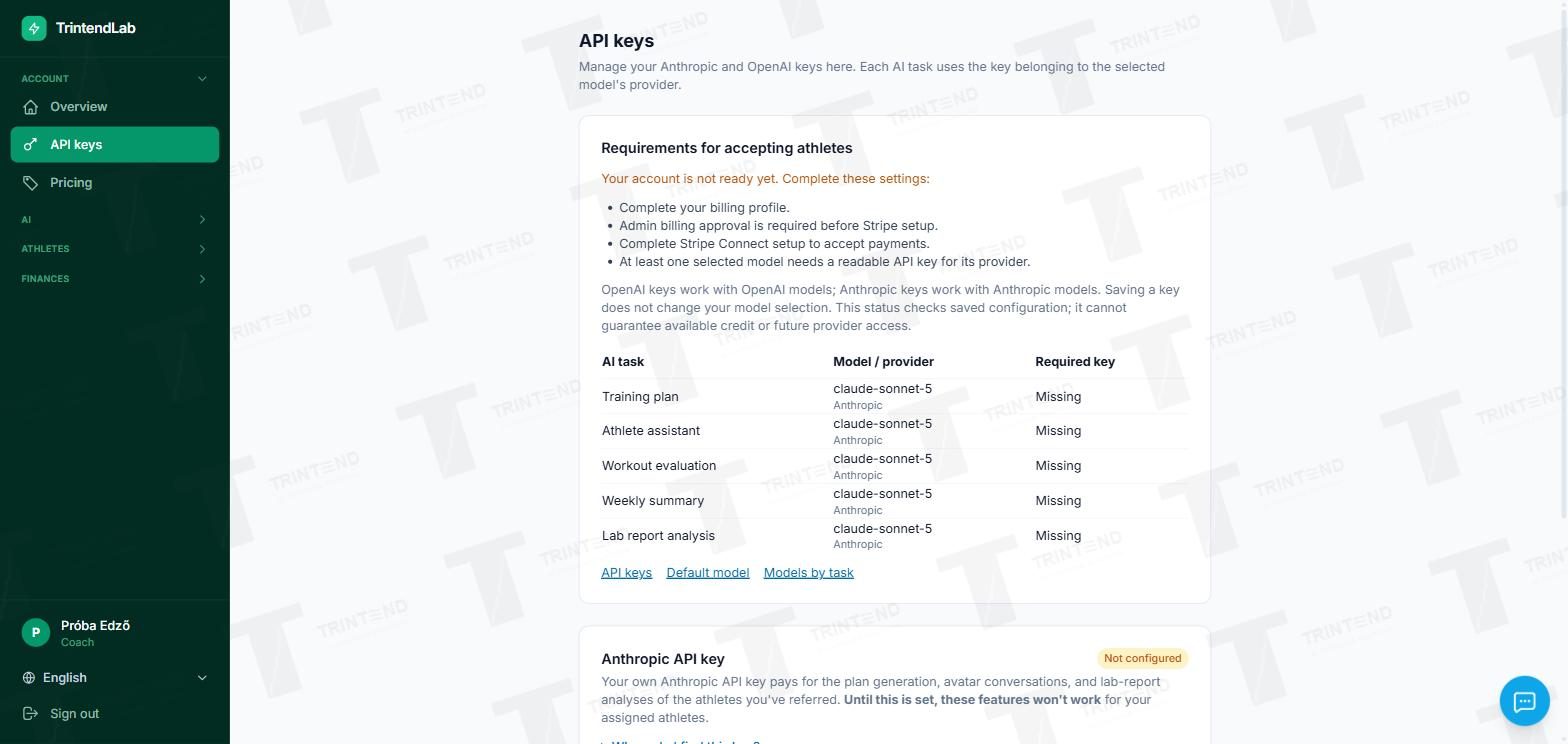
Enter the key on the API keys page. The app tests it with a trial call before saving. Without a working key the features do not start; the app does not fall back to the platform's own key.
A table at the top of the page shows which model is set for each AI task and whether its key is in place. Below it are the Anthropic and OpenAI key fields, each with a help section you can open.
4. Payouts through Stripe
Needed to receive your share.
When one of your athletes buys a block, what remains after the platform fee is yours (80% of the price by default). The amount goes to your Stripe balance at once, and Stripe pays it out to your bank account 15 days later. The delay is there because the athlete can withdraw from the purchase within 14 days.
Leave this step for last. You can connect Stripe once your billing details are complete and the operator has confirmed the agreement on invoicing the platform fee. If that is still missing, the Overview page says so and asks you to contact us.
5. Methodology settings
Optional. By default the AI decides.
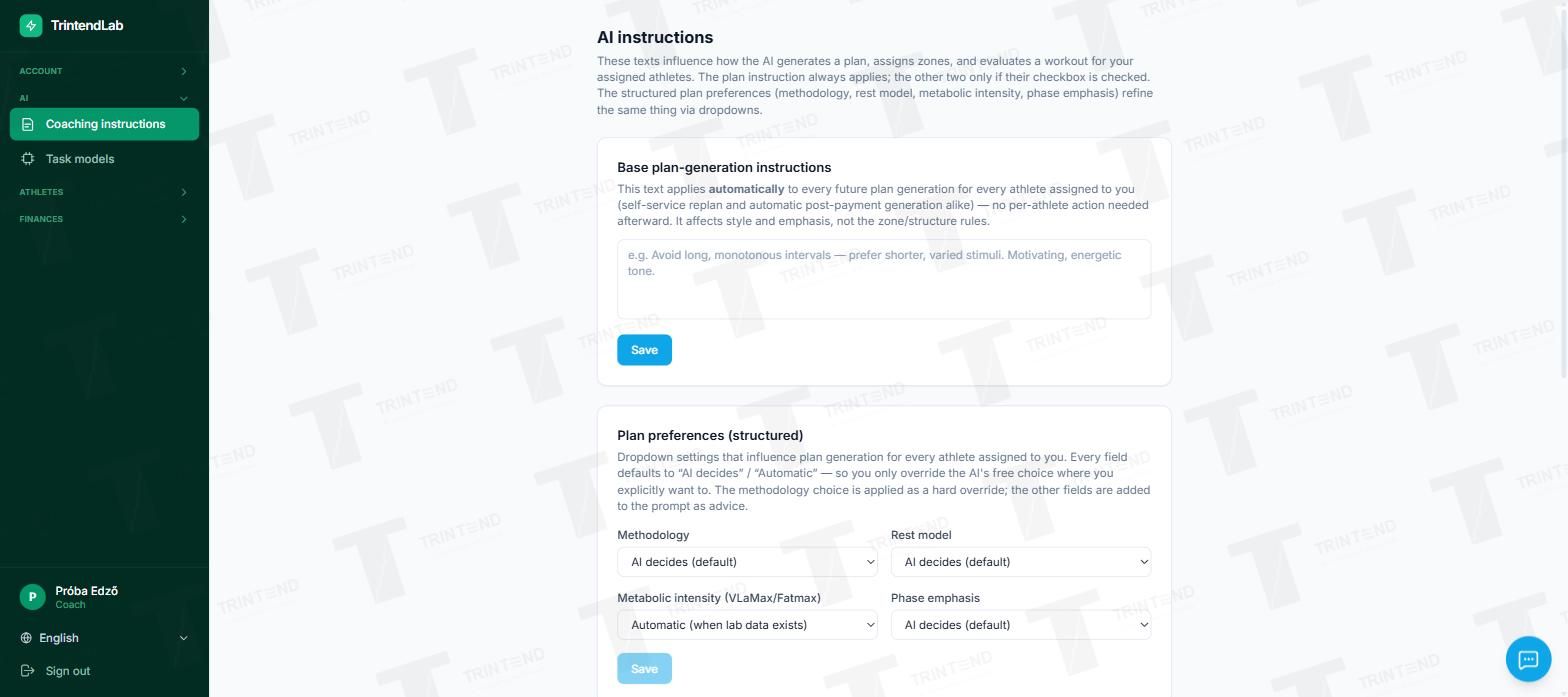
On the AI → Training instructions page you can describe in your own words how you plan training. This applies to every future plan of every athlete assigned to you. It shapes style and emphasis; it does not override the rules for zones and plan structure.
Four dropdowns let you narrow it down: methodology, rest model, metabolic intensity and phase emphasis. Each defaults to "AI decides", so you only need to touch them if you want something different. You can also add separate instructions for zone distribution and for the tone of daily feedback.
6. Model and price
Optional, can be changed at any time.
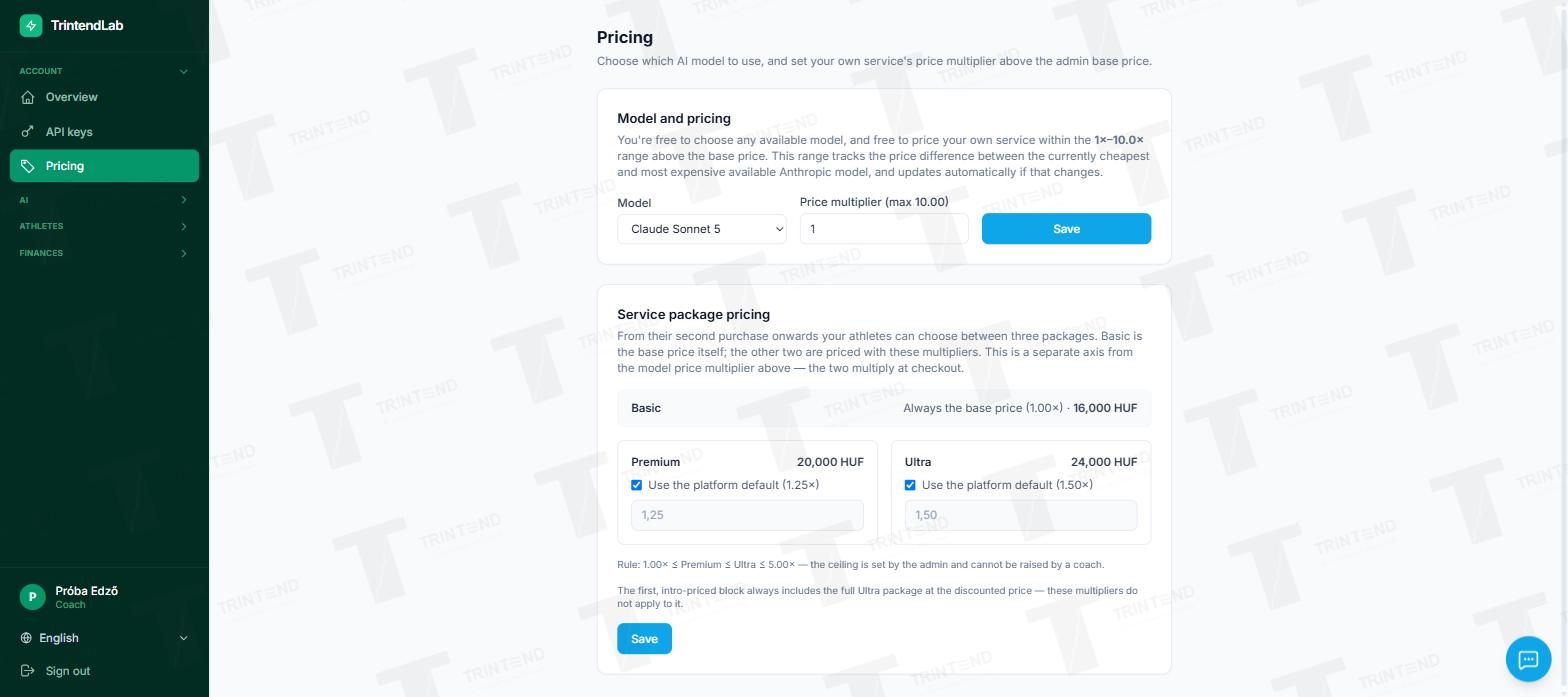
On the Pricing page you choose which AI model works for your athletes and set your own multiplier on top of the base price. The Premium and Ultra surcharges are 1.25× and 1.5× by default; you can change them within the given range. Together these set what the athlete pays and how much of it goes to you.
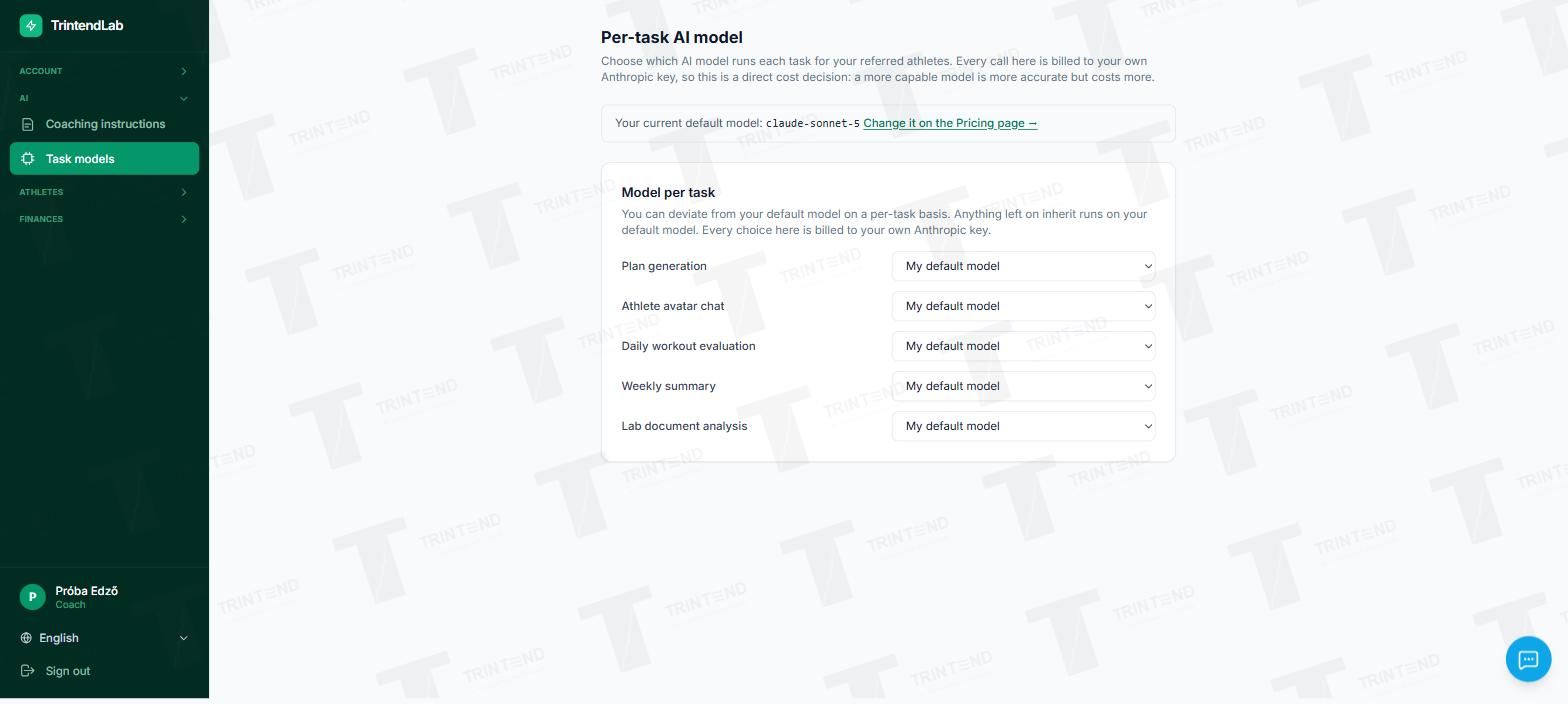
On the AI → Task models page you can choose a separate model for five tasks: plan creation, companion conversations, daily evaluation, weekly summary and lab report analysis. Where you do not choose, your general setting applies.
The package (Basic, Premium, Ultra) is always chosen by the athlete at purchase. You set the methodology, the model and the price.
7. Your invite link
Appears once your tax ID is valid.
As soon as your tax ID is valid, your invite link appears on the Overview page. Anyone who signs up through it is assigned to you automatically. On the Athletes → My athletes page you see their plans and how they are completing them.
You do not see your athletes' lab results, zones or health data. This is locked in the database and cannot be opened by a setting.
8. Costs and earnings
Updated automatically.
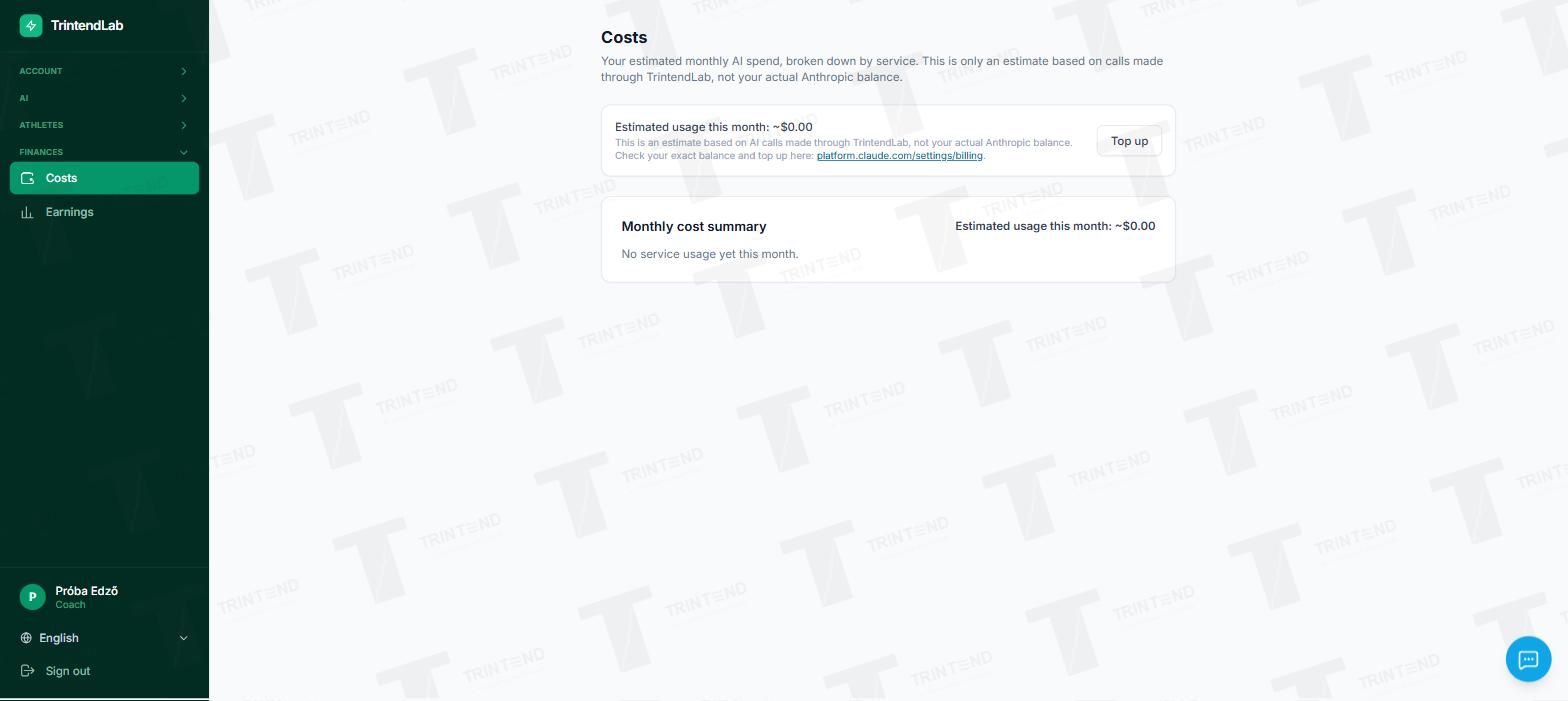
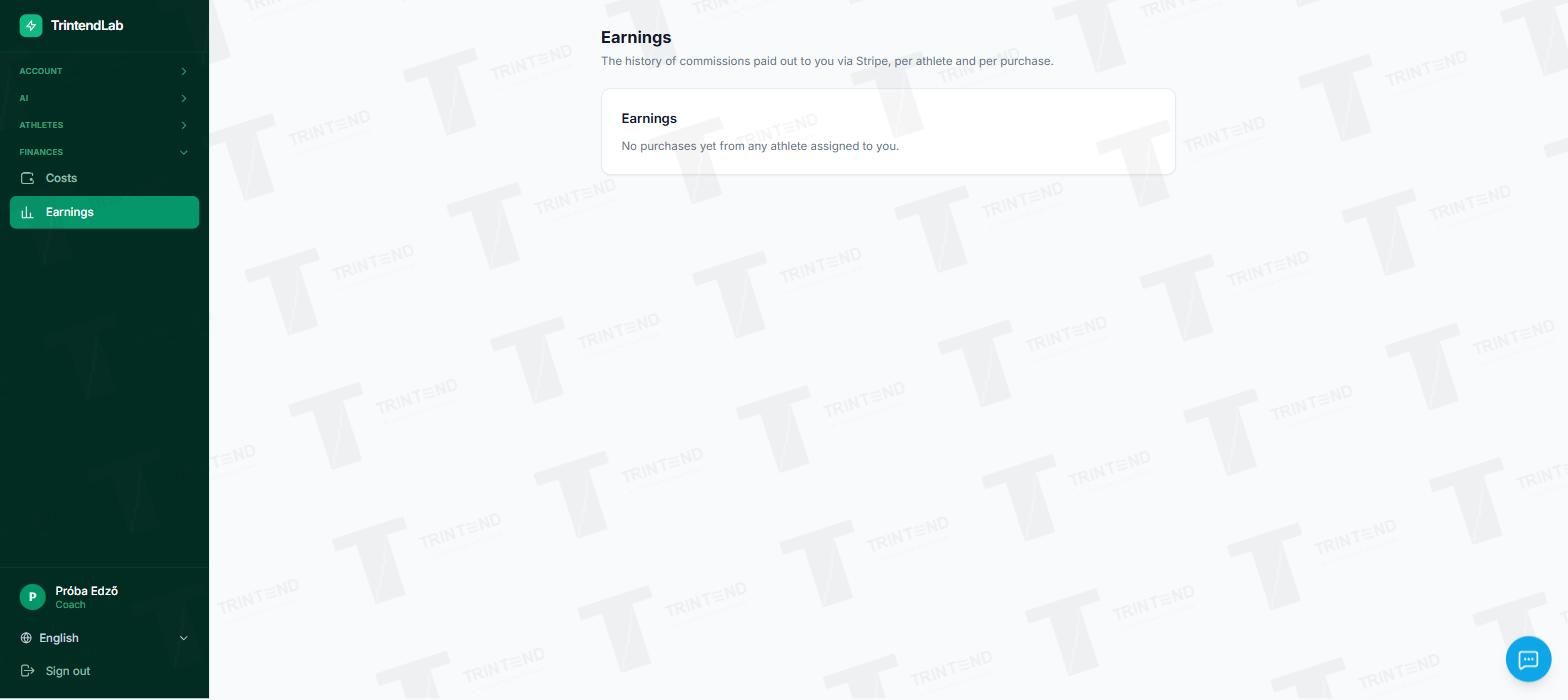
The Finance → Costs page estimates your monthly AI spend. The exact balance is shown by the provider (for Anthropic: platform.claude.com/settings/billing). On the Earnings page you see your paid-out share per athlete and per purchase.
If the platform fee changes later, it does not apply to existing coaches automatically. You get a notice and 21 days to decide whether to accept it. Until then your previous fee stays in place.
Where do I find it?
The screenshots were taken on 31 August 2026. Some screens may have changed a little since. The API keys picture is from 27 September 2026.